
How to Enable Unknown Sources on Android 7 Easy & Safe Steps (2026 Guide)
Introduction
Android is one of the most flexible mobile operating systems available today. Unlike many other platforms, Android allows users to install applications from sources outside the Google Play Store. These applications are usually distributed as APK files and require a special permission called “Install Unknown Apps“, commonly referred to as Unknown Sources. How to Enable Unknown Sources on Android.
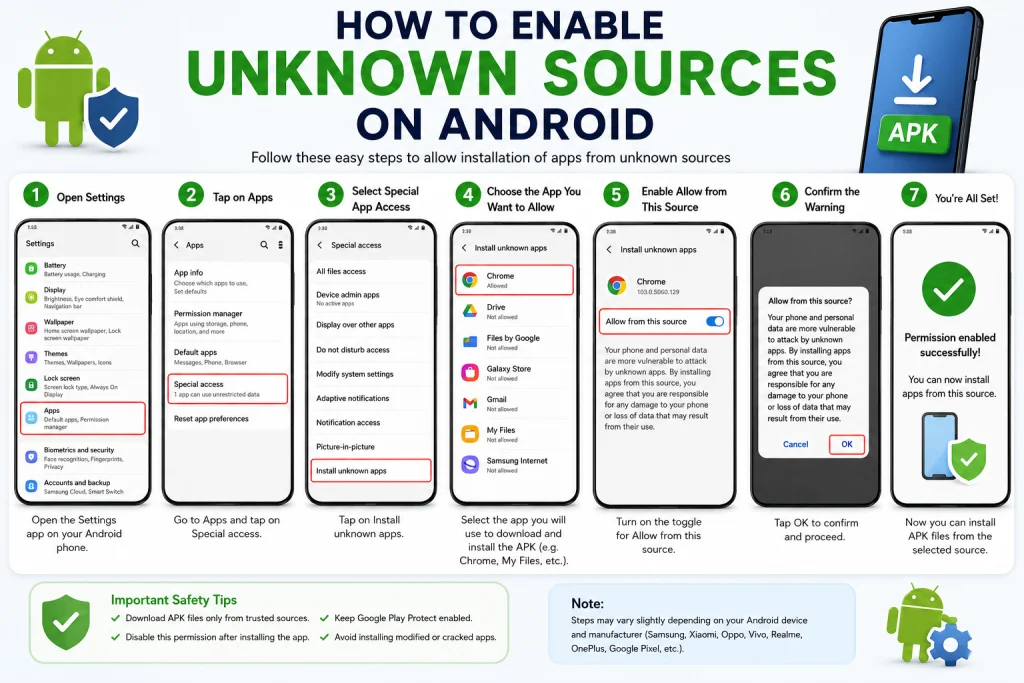
If you’ve ever tried to install an APK manually and received a message saying “For your security, your phone is not allowed to install unknown apps from this source,” don’t worry. This guide will show you exactly how to enable Unknown Sources safely on Android devices.
Whether you’re using a Samsung Galaxy, Xiaomi, Vivo, Oppo, Realme, OnePlus, Motorola, or Google Pixel device, the steps in this guide will help you enable this feature securely.
What Are Unknown Sources on Android?
Unknown Sources is a security feature that controls whether apps from outside the Google Play Store can be installed.
In older Android versions (Android 7 and below), there was a single switch called Unknown Sources that allowed or blocked all APK installations.
Starting with Android 8 (Oreo), Google improved security by replacing this global setting with Install Unknown Apps. Now, you grant permission to specific apps—such as Chrome or your file manager—instead of enabling it for the entire device.
This change reduces security risks because only trusted apps can install APK files. How to Enable Unknown Sources on Android
Why Would You Enable Unknown Sources?
There are several legitimate reasons to enable this setting:
- Install apps that are not available on the Google Play Store.
- Test beta versions of applications.
- Install apps shared directly by developers.
- Access region-restricted applications.
- Install enterprise or workplace apps.
- Use open-source applications distributed outside Google Play.
Always make sure the APK comes from a trusted source before installing it.
Is It Safe to Enable Unknown Sources?
Yes, enabling Unknown Sources is generally safe if you install apps only from trusted developers or official websites.
However, downloading APKs from unknown or suspicious websites can expose your device to:
- Malware
- Viruses
- Spyware
- Fake applications
- Data theft
Safety Tips
- Download APKs only from reputable sources.
- Read user reviews before installing.
- Keep Google Play Protect enabled.
- Review app permissions carefully.
- Disable the permission after you’re finished installing the app.
Following these precautions helps keep your Android device secure.
Requirements Before Enabling Unknown Sources
Before you begin, ensure you have:
- An Android phone or tablet.
- A downloaded APK file (if you plan to install one).
- A stable internet connection.
- Access to your device’s Settings app.
How to Enable Unknown Sources on Android
The exact steps vary slightly depending on your Android version and device manufacturer.
Method 1: Android 8, 9, 10, 11, 12, 13, 14, and 15
- Open Settings.
- Tap Apps.
- Select Special App Access (or Special Access).
- Tap Install Unknown Apps.
- Choose the app you will use to install the APK (for example, Chrome or Files).
- Turn on Allow from this source.
- Open your downloaded APK and tap Install.
Your app should now install successfully.
Method 2: Android 7 and Earlier
If you’re using Android Nougat or an older version:
- Open Settings.
- Tap Security.
- Find Unknown Sources.
- Enable the switch.
- Confirm the warning message.
- Install your APK.
After installation, you can disable the setting again for better security.
How to Enable Unknown Sources on Samsung Phones
Samsung devices use the following path:
Settings → Apps → Special Access → Install Unknown Apps
- Select Chrome, Samsung Internet, or My Files.
- Enable Allow from this source.
- Install your APK.
Samsung phones running One UI 4, 5, 6, or newer all use a similar process.
How to Enable Unknown Sources on Xiaomi, Redmi, and POCO
- Open Settings.
- Go to Privacy Protection or Apps.
- Tap Install Unknown Apps.
- Choose your browser or file manager.
- Enable permission.
MIUI and HyperOS may display slightly different menu names, but the option works the same way.
How to Enable Unknown Sources on Oppo, Vivo, and Realme
- Open Settings.
- Tap Security or Privacy.
- Select Install Unknown Apps.
- Choose the application that downloaded the APK.
- Turn on Allow from this source.
How to Enable Unknown Sources on Google Pixel
Pixel devices use stock Android, making the process straightforward:
Settings → Apps → Special App Access → Install Unknown Apps
Choose the browser or file manager and enable the permission.
Common Problems and Solutions
“Installation Blocked”
This usually means the permission hasn’t been granted.
Go back to Install Unknown Apps and enable it for the correct application.
How to Enable Unknown Sources on Android
“App Not Installed”
Possible causes include:
- Corrupted APK
- Incompatible Android version
- Low storage
- Conflicting app version
Download the APK again or free up storage before trying again.
Permission Option Missing
If you can’t find the option:
- Update your Android software.
- Use the Settings search bar and search for Install Unknown Apps.
- Check your device manufacturer’s support documentation.
Best Practices for Safe APK Installation
To protect your device:
- Install APKs only when necessary.
- Use official developer websites whenever possible.
- Keep your Android system updated.
- Enable Google Play Protect after installation.
- Avoid cracked or modified APKs.
- Delete APK files after installation to save storage.
These habits help reduce security risks while enjoying Android’s flexibility. How to Enable Unknown Sources on Android
Frequently Asked Questions
What does “Unknown Sources” mean?
It refers to apps that are installed from outside the Google Play Store.
Should I leave Unknown Sources enabled?
No. Enable it only when you need to install an APK, then disable it afterward for better security.
Can enabling Unknown Sources damage my phone?
The setting itself is safe. The real risk comes from installing untrusted APK files.
Do I need to root my Android phone?
No. You can enable Unknown Sources and install APKs without rooting your device.
Why can’t I find the Unknown Sources option?
On Android 8 and newer, the setting is called Install Unknown Apps instead of Unknown Sources.
Conclusion
Enabling Unknown Sources on Android allows you to install apps from outside the Google Play Store, giving you greater flexibility and access to beta apps, region-restricted software, and developer releases. Modern Android versions make this process safer by requiring permission on a per-app basis rather than enabling it system-wide. How to Enable Unknown Sources on Android
How to Enable Unknown Sources on Android
Always download APK files from trusted sources, review app permissions, and disable the installation permission once you’re done. By following the steps and safety tips in this guide, you can confidently enable Unknown Sources and install APK files without compromising your device’s security. How to Enable Unknown Sources on Android