
How to Fix App Not Installed Error 15 Proven Solutions That Actually Work
Installing apps on Android is usually a quick and simple process. However, many users encounter the frustrating “App Not Installed” error when trying to install an APK file or update an existing application. This issue can occur on almost any Android device, including Samsung, Xiaomi, Oppo, Vivo, Realme, OnePlus, Motorola, and Google Pixel phones. How to Fix App Not Installed Error.
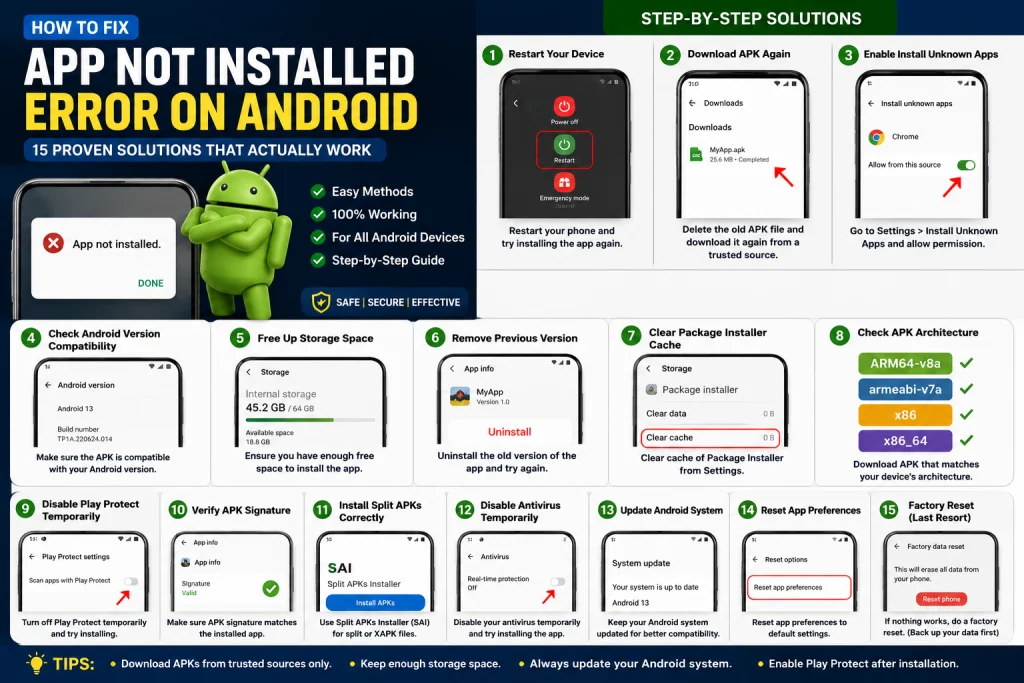
How to Fix App Not Installed Error
The App Not Installed error can happen for several reasons, such as corrupted APK files, insufficient storage, incompatible Android versions, or security restrictions. Fortunately, most of these problems can be be resolved with a few simple troubleshooting steps. How to Fix App Not Installed Error.
In this guide, you’ll learn the most common causes of the App Not Installed error and discover 15 proven solutions to fix it quickly and safely.
Why Does the “App Not Installed” Error Occur?
Before fixing the problem, it’s important to understand why Android displays this error.
Some common reasons include:
- Corrupted APK file
- Incompatible Android version
- Existing app conflicts
- Low storage space
- Disabled installation permissions
- Damaged download
- Incorrect APK architecture
- Security restrictions
- Google Play Protect blocking the app
- Split APK or XAPK installation issues
Identifying the actual cause makes troubleshooting much easier.
Solution 1: Restart Your Android Device
The simplest solution is often the most effective.
Restarting your phone clears temporary files and refreshes Android’s system processes.
Steps
- Press and hold the Power button.
- Tap Restart.
- Wait for the phone to reboot.
- Try installing the APK again.
Many temporary installation errors disappear after a restart.
Solution 2: Download the APK Again
Sometimes the downloaded APK is incomplete or corrupted.
Delete the existing APK file and download it again from a trusted source.
Make sure:
- The download completes successfully.
- The file size matches the original.
- The website is reputable.
Avoid downloading APKs from unknown websites. How to Fix App Not Installed Error
Solution 3: Enable Install Unknown Apps
Android blocks installations from unknown sources by default.
Enable Permission
Go to:
Settings → Apps → Special App Access → Install Unknown Apps
Select the browser or file manager used to download the APK.
Turn on:
Allow from this source
Now try installing the application again.
Solution 4: Check Android Version Compatibility
Not every APK works on every Android version.
For example:
- Android 15 APKs may not work on Android 10.
- Older APKs may fail on newer Android versions.
Always download an APK that matches your device’s Android version.
Solution 5: Free Up Storage Space
Insufficient storage can prevent Android from installing apps.
Check Storage
Go to:
Settings → Storage
Delete:
- Large videos
- Duplicate photos
- Unused applications
- Cached files
Leave at least 1 GB of free storage before installing large apps.
Solution 6: Remove Previous Versions
If an older version of the same app already exists, Android may block installation.
Fix
- Open Settings → Apps.
- Locate the existing app.
- Tap Uninstall.
- Install the new APK again.
This works especially well when switching between official and modified versions of an app.
Solution 7: Clear Package Installer Cache
The Package Installer manages APK installations.
A corrupted cache may trigger installation errors.
Steps
- Open Settings.
- Tap Apps.
- Show System Apps (if necessary).
- Open Package Installer.
- Tap Storage.
- Select Clear Cache.
Restart your phone and try again.
Solution 8: Check APK Architecture
Android devices use different processor architectures such as:
- ARM64
- ARM
- x86
- x86_64
Installing an incompatible APK can cause the App Not Installed error.
Check your device’s architecture before downloading the APK.
Solution 9: Disable Google Play Protect Temporarily
Google Play Protect scans apps for security risks.
Sometimes it blocks safe APK installations.
To Disable Temporarily
- Open the Google Play Store.
- Tap your profile picture.
- Go to Play Protect.
- Open Settings.
- Turn off Scan Apps with Play Protect.
After installing the app, re-enable Play Protect for security.
Solution 10: Verify the APK Signature
If you’re updating an app manually, the APK must be signed with the same certificate as the installed version.
If the signatures don’t match, Android refuses the installation.
In that case, uninstall the existing app before installing the new APK.
Solution 11: Install Split APKs Correctly
Some apps use Split APK (APKS) or XAPK formats.
These cannot be installed by simply tapping the file.
Use a trusted Split APK installer such as an appropriate installer app designed for APKS or XAPK packages.
Solution 12: Disable Antivirus Temporarily
Some security apps mistakenly block APK installations.
Temporarily disable your antivirus, install the APK, and then turn the protection back on.
Only do this if you trust the APK source.
Solution 13: Update Your Android System
An outdated Android version may cause compatibility issues.
Go to:
Settings → System → Software Update
Install any available updates and restart your device.
Solution 14: Reset App Preferences
Incorrect app permissions or disabled system apps can interfere with installation.
Reset App Preferences
- Open Settings → Apps.
- Tap the menu icon.
- Select Reset App Preferences.
This restores default settings without deleting your personal data.
Solution 15: Factory Reset (Last Resort)
If none of the above methods work, a factory reset may resolve deep system issues.
Important: Back up your photos, contacts, documents, and other important files before proceeding.
Go to:
Settings → System → Reset → Factory Data Reset
Only use this solution after trying all other troubleshooting methods.
Tips to Avoid the “App Not Installed” Error
Follow these best practices to reduce the chances of encountering installation problems:
- Download APKs only from trusted sources.
- Keep your Android system updated.
- Ensure you have enough free storage.
- Enable installation permissions only when needed.
- Avoid installing modified or unofficial APKs from unknown websites.
- Keep Google Play Protect enabled after installation.
- Delete old APK files you no longer need.
- How to Fix App Not Installed Error
Frequently Asked Questions
Why does Android say “App Not Installed”?
This usually happens because of a corrupted APK, incompatible Android version, insufficient storage, installation permission issues, or a conflict with an existing app.
Can low storage cause installation failure?
Yes. Android requires enough free storage to unpack and install an application successfully.
Should I uninstall the old version first?
If the APK is signed differently from the installed version, uninstalling the old app is often necessary before installing the new one.
Is it safe to disable Play Protect?
Temporarily disabling Play Protect can help with installation, but you should turn it back on immediately afterward to keep your device protected.
Can APK files contain viruses?
Yes. APKs from untrusted sources may contain malware. Always download apps from reputable websites or the official developer whenever possible.
Conclusion
The App Not Installed error is one of the most common Android installation problems, but it is usually easy to fix once you identify the underlying cause. Whether the issue is related to storage, permissions, APK compatibility, or security settings, the solutions in this guide can help you get your app installed successfully. How to Fix App Not Installed Error
Start with the simplest fixes, such as restarting your phone, downloading the APK again, or enabling installation permissions. If the problem persists, check for compatibility issues, clear the Package Installer cache, or remove conflicting app versions. How to Fix App Not Installed Error
By following these proven troubleshooting methods and downloading APK files only from trusted sources, you can install Android apps safely and avoid this error in the future. How to Fix App Not Installed Error